🚀 Florentine.ai MCP Server - Talk to your MongoDB & MySQL data
The Florentine.ai Model Context Protocol (MCP) Server enables you to directly integrate natural language querying for your MongoDB & MySQL data into your custom AI Agent or AI Desktop App.
Questions are forwarded by the AI Agent to the MCP Server, transformed into database queries, and the query results are returned to the agent for further processing.
It also comes with several extra features, such as:
- Secure data separation for multi-tenant usage
- Automated schema exploration
- Semantic vector search/RAG support with automated embedding creation
- Advanced lookup support
- Exclusion of keys
Note: If you are looking for our API, you can find it here.
🚀 Quick Start
The Florentine.ai MCP Server allows seamless integration of natural language querying for MongoDB and MySQL data into your custom AI applications. This README provides all the necessary information to get started.
✨ Features
- Integrate natural language querying for MongoDB and MySQL data.
- Forward questions to the server, transform them into database queries, and return results to the agent.
- Offer extra features like secure data separation, automated schema exploration, semantic vector search/RAG support, advanced lookup support, and key exclusion.
📦 Installation
A detailed documentation of the MCP Server can be found here in our docs.
You can easily run the server using npx. See the following example for Claude Desktop (claude_desktop_config.json):
{
  "mcpServers": {
    "florentine": {
      "command": "npx",
      "args": ["-y", "@florentine-ai/mcp", "--mode", "static"],
      "env": {
        "FLORENTINE_TOKEN": "<FLORENTINE_API_KEY>"
      }
    }
  }
}
💻 Usage Examples
Basic Usage
{
  "mcpServers": {
    "florentine": {
      "command": "npx",
      "args": ["-y", "@florentine-ai/mcp", "--mode", "static"],
      "env": {
        "FLORENTINE_TOKEN": "<FLORENTINE_API_KEY>"
      }
    }
  }
}
Advanced Usage
import { StdioClientTransport } from '@modelcontextprotocol/sdk/client/stdio.js';
import { Client } from '@modelcontextprotocol/sdk/client/index.js';
import { fetchUserSpecificData } from './userService.js';
const mcpClient = new Client({
name: 'florentine',
version: '1.0.0'
});
const mcpSetupConfig = new StdioClientTransport({
command: 'npx',
args: ['-y', '@florentine-ai/mcp', '--mode', 'dynamic'],
env: {
FLORENTINE_TOKEN: '<FLORENTINE_API_KEY>'
}
});
await mcpClient.connect(mcpSetupConfig);
const originalCallTool = mcpClient.callTool;
const enhanceAskParameters = async ({ question }: { question: string }) => {
return {
question,
...(await fetchUserSpecificData({ userId: '<USER_ID>' }))
};
};
mcpClient.callTool = async (params, resultSchema, options) => {
if (params.name === 'florentine_ask')
params.arguments = await enhanceAskParameters(
params.arguments as unknown as { question: string }
);
return await originalCallTool(params, resultSchema, options);
};
const result = await mcpClient.callTool({
name: 'florentine_ask',
arguments: {
question: 'Who won the last tabletennis match?'
}
});
📚 Documentation
Prerequisites
- Node.js >= v18.0.0
- A Florentine.ai account (create a free account here)
- A connected database and at least one analyzed and activated collection/table in your Florentine.ai account
- A Florentine.ai API Key (you can find yours on your account dashboard)
Available Tools
- florentine_list_collections --> Lists all currently active collections/tables that can be queried. That includes descriptions, keys and type of values.
- florentine_ask --> Receives a question and returns a query, query result or answer (depending on the
returnTypes setting).
Arguments
| Variable |
Required |
Allowed values |
Description |
--mode |
Yes |
static, dynamic |
static (for existing external MCP clients, e.g. Claude Desktop) or dynamic (for own custom MCP clients). See integration modes section. |
--debug |
No |
true |
Enables logging to external file. If set requires --logpath to be set as well. |
--logpath |
No |
Absolute log file path |
File path to the debug log. If set requires --debug to be set as well. |
Authentication
The Florentine.ai MCP Server uses an API key to authenticate requests. You can view and manage your API key on your account dashboard. The key must be added as an ENV variable to the configuration setup of the MCP server:
"env": {
  "FLORENTINE_TOKEN": "<FLORENTINE_API_KEY>"
}
Connect your LLM account
Florentine.ai works as a bring your own key model, so you need to provide your LLM API key (OpenAI, Google, Anthropic, Deepseek) in your MCP requests.
You have two options how you can add your LLM API key:
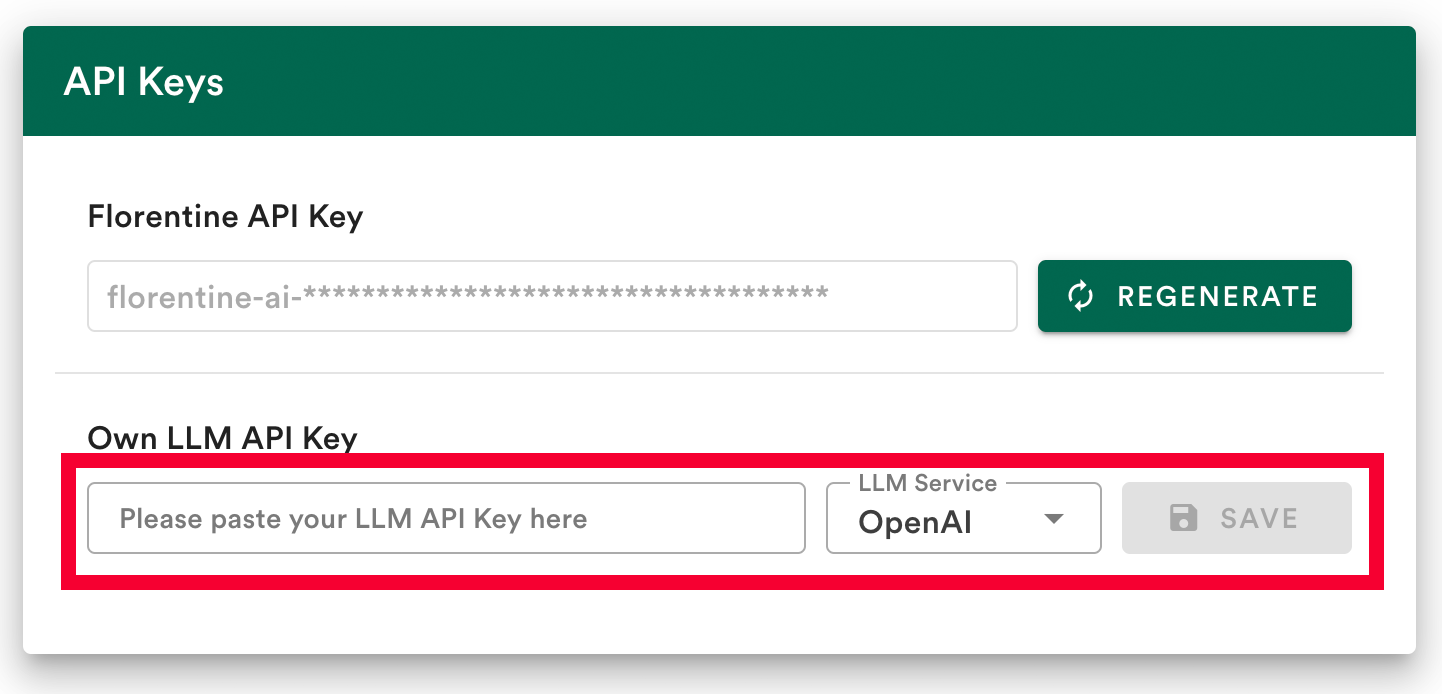
Option 1: Save your LLM key in your account (recommended)
The easiest way to connect to your LLM provider is to save your LLM API key in your Florentine.ai dashboard.
- Add your API key
- Select your LLM provider (OpenAI, Deepseek, Google or Anthropic)
- Click Save
Option 2: Provide your LLM key inside the MCP server config env variables
If you prefer not to store the key in your Florentine.ai account or want to use multiple LLM keys, you can pass the key inside the MCP server config:
"env": {
  "LLM_SERVICE": "<YOUR_LLM_SERVICE>",
  "LLM_KEY": "<YOUR_LLM_API_KEY>"
}
| Parameter |
Description |
Allowed Values |
LLM_SERVICE |
Specifies the LLM provider to use. |
openai,google,anthropic or deepseek |
LLM_KEY |
Your API key for the provided LLM service. |
A valid API key string |
Note: If you provide a LLM_KEY inside the env variables of the MCP server config, it will override any key stored in your account.
Integration Modes
You will have to set the operating mode in the args array of your MCP Server config to either static or dynamic:
"args": [
  "-y",
  "@florentine-ai/mcp",
  "--mode",
  "static"
]
Static Mode
The static mode should be used if you integrate Florentine.ai into an existing external MCP client such as a MCP-ready Desktop App like Claude Desktop or Dive AI.
In static mode you set all parameters (such as Return Types, Required Inputs, etc.) as env variables inside the config json. This means that these parameters will remain static until you change the setup config and will be sent with every request to Florentine.ai. See the following example:
{
  "mcpServers": {
    "florentine": {
      "command": "npx",
      "args": ["-y", "@florentine-ai/mcp", "--mode", "static"],
      "env": {
        "FLORENTINE_TOKEN": "<FLORENTINE_API_KEY>",
        "SESSION_ID": "6f7d62f9-8ceb-456b-b7ef-6bd869c3b13a",
        "LLM_SERVICE": "openai",
        "LLM_KEY": "<YOUR_OPENAI_KEY>",
        "RETURN_TYPES": "[\"result\"]",
        "REQUIRED_INPUTS": "[{\"keyPath\":\"accountId\",\"value\":\"507f1f77bcf86cd799439011\"}]"
      }
    }
  }
}
Environment variables
| Variable |
Required |
Type |
Description |
FLORENTINE_TOKEN |
Yes |
String |
Your Florentine.ai api key, copy it from dashboard. |
SESSION_ID |
No |
String |
The session id of the client. Used for server-side chat history. See Sessions section. |
LLM_SERVICE |
No |
String |
Specifies the LLM provider to use. Only needed if you did not save the LLM key in your Florentine.ai account. See Connect your LLM account section. |
LLM_KEY |
No |
String |
Your API key for the provided LLM service. Only needed if you did not save the LLM key in your Florentine.ai account. See Connect your LLM account section. |
RETURN_TYPES |
No |
Stringified JSON |
The return types for florentine_ask tool calls. See Return Types section. |
REQUIRED_INPUTS |
No |
Stringified JSON |
The required inputs. See Required Inputs section. |
Dynamic Mode
The dynamic mode should be used if you integrate Florentine.ai into your own custom MCP client.
In dynamic mode you can pass all parameters (such as Return Types, Required Inputs, etc.) directly to the florentine_ask tool. This means you can dynamically inject individual parameters to every request forwarded to Florentine.ai (i.e. a user id).
In order to be able to pass in values dynamically you have to overwrite the florentine_ask tool method inside your custom client/agent. Look at the following example using the standard @modelcontextprotocol Typescript SDK:
import { StdioClientTransport } from '@modelcontextprotocol/sdk/client/stdio.js';
import { Client } from '@modelcontextprotocol/sdk/client/index.js';
import { fetchUserSpecificData } from './userService.js';
const mcpClient = new Client({
  name: 'florentine',
  version: '1.0.0'
});

const mcpSetupConfig = new StdioClientTransport({
  command: 'npx',
  args: ['-y', '@florentine-ai/mcp', '--mode', 'dynamic'],
  env: {
    FLORENTINE_TOKEN: '<FLORENTINE_API_KEY>'
  }
});

await mcpClient.connect(mcpSetupConfig);
const originalCallTool = mcpClient.callTool;
const enhanceAskParameters = async ({ question }: { question: string }) => {
return {
question,
...(await fetchUserSpecificData({ userId: '<USER_ID>' }))
};
};
mcpClient.callTool = async (params, resultSchema, options) => {
  if (params.name === 'florentine_ask')
    params.arguments = await enhanceAskParameters(
      params.arguments as unknown as { question: string }
    );
  return await originalCallTool(params, resultSchema, options);
};
const result = await mcpClient.callTool({
  name: 'florentine_ask',
  arguments: {
    question: 'Who won the last tabletennis match?'
  }
});
Example breakdown
Let's see what is happening in the example above in detail.
First of all we create the mcp client and connect it:
const mcpClient = new Client({
name: 'florentine',
version: '1.0.0'
});
const mcpSetupConfig = new StdioClientTransport({
command: 'npx',
args: ['-y', '@florentine-ai/mcp', '--mode', 'dynamic'],
env: {
FLORENTINE_TOKEN: '<FLORENTINE_API_KEY>'
}
});
await mcpClient.connect(mcpSetupConfig);
Note: You may use env variables in dynamic mode as well. However if you specify parameters dynamically these will overwrite existing env values for the parameters.
Next, we save the original callTool function to a variable:
const originalCallTool = mcpClient.callTool;
Then we create an enhanceAskParameters function that takes a question as input, fetches additional parameters (e.g. returnTypes, requiredInputs etc.) for the user and returns the merged parameters:
const enhanceAskParameters = async ({ question }: { question: string }) => {
return {
question,
...(await fetchUserSpecificData({ userId: '<USER_ID>' }))
};
};
Then we overwrite the original callTool function with an implementation that enhances the florentine_ask tool with the parameters coming from enhanceAskParameters and call the original callTool function we save to the variable originalCallTool:
mcpClient.callTool = async (params, resultSchema, options) => {
if (params.name === 'florentine_ask')
params.arguments = await enhanceAskParameters(
params.arguments as unknown as { question: string }
);
return await originalCallTool(params, resultSchema, options);
};
Finally we can call the florentine_ask tool with a question and have the user-specific parameters dynamically injected:
const result = await mcpClient.callTool({
name: 'florentine_ask',
arguments: {
question: 'Who won the last tabletennis match?'
}
});
IMPORTANT:
Make sure that you never use dynamic mode without overwriting florentine_ask implementation.
If you do not overwrite it your client/agent will directly use the mcp server-side implementation of the florentine_ask tool with all additional parameters.
So the client/agent will decide on its own what values to fill in for returnTypes, requiredInputs etc.
That will result in unexpected behavior and lead to errors and wrong results.
florentine_ask Parameters
| Variable |
Required |
Type |
Description |
sessionId |
No |
String |
The session id of the client. Used for server-side chat history. See Sessions section. |
returnTypes |
No |
Array<String> |
The return types for florentine_ask tool calls. See Return Types section. |
requiredInputs |
No |
Array<Object> |
The required inputs. See Required Inputs section. |
Return Types
By default, the florentine_ask tool returns the result type configured in your Florentine.ai account (default: result). You can override this per request by specifying a returnTypes array with any combination of the following three steps:
- Query Generation: The question is converted into a database query (MongoDB aggregation pipeline or MySQL query).
- Query Execution: The query runs against the database using the connection string you provided.
- Answer Generation: The structured result is transformed into a natural language answer.
Providing Return Types
You have two options to include a returnTypes array:
- As the
RETURN_TYPES env variable in your MCP setup config (possible in static and dynamic mode)
- As the
returnTypes parameter to the florentine_ask tool (possible only in dynamic mode)
As an env variable you provide the value as a stringified json array:
"env": {
  "RETURN_TYPES": "[\"query\",\"result\",\"answer\"]"
}
As a tool parameter you provide the value as an array:
{
  "returnTypes": ["query", "result", "answer"]
}
Return Types Configuration
You can choose which of these steps you want returned by specifying a returnTypes array with any combination of:
returnTypes Value |
Description |
Expected Keys in Response |
"query" |
Returns the generated database query, the database and collection/table used, a confidence score on a scale from 0 to 10 and the database type ("mongodb" or "mysql"). |
confidence, database, collection, query, databaseType |
"result" |
Returns the raw query results from the executed query. |
result |
"answer" |
Returns a natural language response based on the results from the executed query. |
answer |
Secure Data Separation for multi-tenant usage
You can enable secure data separation by ensuring queries filter data based on provided values which we call Required Inputs.
These values are added to the query by the Florentine.ai transformation layer after the query generation by the LLM. Thus Florentine.ai can assure each user only retrieves the data he is eligible to.
Keys are defined as Required Input in your account, please refer to the section in our official docs on how to do that.
Providing Required Inputs
You have two options to include a requiredInputs array:
- As the
REQUIRED_INPUTS env variable in your MCP setup config (possible in static and dynamic mode)
- As the
requiredInputs parameter to the florentine_ask tool (possible only in dynamic mode)
As an env variable you provide the value as a stringified json array:
"env": {
  "REQUIRED_INPUTS": "[{\"keyPath\":\"userId\",\"value\":\"507f1f77bcf86cd799439011\"}]"
}
As a tool parameter you provide the value as an array:
"requiredInputs": [
    {
      "keyPath": "userId",
      "value": "507f1f77bcf86cd799439011"
    }
  ]
You may also provide a database and a collections array in case you have Required Inputs with the same keyPath in multiple collections/tables but different value for the collections/tables:
{
  "requiredInputs": [
    {
      "keyPath": "name",
      "value": "Sesame Street",
      "database": "rentals",
      "collections": ["houses"]
    },
    {
      "keyPath": "name",
      "value": { "$in": ["Ernie", "Bert"] },
      "database": "rentals",
      "collections": ["tenants"]
    }
  ]
}
Required Inputs Configuration
| Field |
Required |
Type |
Description |
Constraints |
keyPath |
Yes |
String |
The path to the field that should be filtered. |
Must be a valid key path. |
value |
Yes |
Any |
The value(s) to filter by (type-specific, see Supported Value Types). |
Must match the field's type (String, ObjectId, Boolean, Number, or Date). |
database |
No |
String |
The database containing the collections to filter. |
Must be provided if collections is provided. |
collections |
No |
Array<String> |
The specific collections/tables within the database to apply the filter to. |
Must contain at least one collection/table. |
Supported Value Types
Based on the type of the values for the key you have different options on what you can provide as a Required Input value:
| Type |
Format Examples |
Operators Supported |
Notes |
String or Array<String> |
"text"
{ $in: ["text1", "text2"] } |
$in |
Case-sensitive. |
ObjectId or Array<ObjectId> |
"507f191e810c19729de860ea"
{ $in: ["507f191e810c19729de860ea", "507f191e810c19729de860eb"] } |
$in |
Provided as strings. |
Boolean |
true/false |
— |
Only exact values. |
Number or Array<Number> |
42
{ $gt: 10, $lte: 100 }
{ $in: [1, 2, 3] }
{ $in: [{$gte:1}, {$lt:10}] } |
$gt, $gte, $lt, $lte, $in |
Supports decimals. |
Date or Array<Date> |
"2024-01-01T00:00:00Z" (UTC)
"2024-01-01T00:00:00-05:00"(timezone offset) |
$gt, $gte, $lt, $lte, $in |
ISO 8601 format. |
Usage Examples
Note: We will only provide examples as tool parameter input. For env implementation you just change the key name to REQUIRED_INPUTS and stringify the json.
Example type: String
Usecase: A user should only be able to see statistics of the players he frequently plays with.
Solution: Restricting access by player name to a group of 4 players.
const res = await FlorentineAI.ask({
  question: 'Which player had the most wins?',
  requiredInputs: [
    {
      keyPath: 'name',
      value: { $in: ['Megan', 'Frank', 'Jen', 'Bob'] }
    }
  ]
});
Example type: ObjectId
Usecase: A user should only be able to see the revenue of his own products.
Solution: Restricting the access by the accountId to one specific account.
const res = await FlorentineAI.ask({
  question: 'Whats the revenue of my products?',
  requiredInputs: [
    {
      keyPath: 'accountId',
      value: '507f1f77bcf86cd799439011'
    }
  ]
});
Example type: Boolean
Usecase: Every analysis of customers should only be performed on paying customers.
Solution: Restricting the access by isPaidAccount to paying customers only.
const res = await FlorentineAI.ask({
  question: 'How many customers registered in the last year?',
  requiredInputs: [
    {
      keyPath: 'isPaidAccount',
      value: true
    }
  ]
});
Example type: Number
Usecase: An employee should only be allowed to see payment information for payments below a certain amount.
Solution: Restricting the access by amount to payments below 10.000.
const res = await FlorentineAI.ask({
  question: 'List all payments we received.',
  requiredInputs: [
    {
      keyPath: 'amount',
      value: { $lt: 10000 }
    }
  ]
});
Example type: Date
Usecase: The analysis of financial data should only include one specific year.
Solution: Restricting the access by transactionDate to all transactions in 2024.
const res = await FlorentineAI.ask({
  question: 'What was our revenue, profit and margin per month?',
  requiredInputs: [
    {
      keyPath: 'transactionDate',
      value: {
        $gte: '2023-01-01T00:00:00Z',
        $lt: '2024-01-01T00:00:00Z'
      }
    }
  ]
});
Sessions
Sessions allow Florentine.ai to enable a server-side chat history.
Since the client/agent including the MCP server usually keeps track of the chat history itself it is not absolutely essential to add a session.
However it might still help Florentine.ai to get a better understanding of the context and might increase result quality.
Providing a session
You have two options to include a sessionId:
- As the
SESSION_ID env variable in your MCP setup config (possible in static and dynamic mode)
- As the
sessionId parameter to the florentine_ask tool (possible only in dynamic mode)
As an env variable:
"env": {
  "SESSION_ID": "<YOUR_SESSION_ID>"
}
As a tool parameter:
{
  "sessionId": "<YOUR_SESSION_ID>"
}
Errors
All errors from the MCP Server tool calls follow this consistent JSON structure:
{
  "error": {
    "name": "FlorentineApiError",
    "statusCode": 500,
    "message": "The provided Florentine API key is invalid. You can find the key in your account settings: https://florentine.ai/settings",
    "errorCode": "INVALID_TOKEN",
    "requestId": "abc123"
  }
}
| Field |
Type |
Description |
name |
string |
Error class name (e.g. FlorentineApiError, FlorentineConnectionError) |
statusCode |
number |
HTTP status code (e.g. 400, 500) |
message |
string |
Explanation of what went wrong |
errorCode |
string |
Error identifier (e.g. NO_TOKEN, INVALID_LLM_KEY) |
requestId |
string |
Unique ID for this request (helpful for support and debugging) |
Custom client error handling
The error object is returned as a stringified json in the content array:
{
  "content": [
    {
      "type": "text",
      "text": "{\"error\":{\"name\":\"FlorentineApiError\",\"statusCode\":401,\"message\":\"The provided Florentine API key is invalid. You can find the key in your account settings: https://florentine.ai/settings\",\"errorCode\":\"INVALID_TOKEN\",\"requestId\":\"uhv99g\"}}"
    }
  ],
  "isError": true
}
You may parse the JSON in text and handle the different errors inside your custom client/agent.
Common Errors
| Error Name |
errorCode |
Meaning |
FlorentineApiError |
MODE_MISSING |
You must provide static or dynamic as mode argument |
FlorentineApiError |
MODE_INVALID |
Mode is invalid (must be static or dynamic) |
FlorentineApiError |
INVALID_TOKEN |
The Florentine API key is invalid |
FlorentineApiError |
LLM_KEY_WITHOUT_SERVICE |
You must provide a llmService if llmKey is defined |
FlorentineApiError |
LLM_SERVICE_WITHOUT_KEY |
You must provide a llmKey if llmService is defined |
FlorentineApiError |
INVALID_LLM_SERVICE |
Invalid llmService provided |
FlorentineApiError |
NO_OWN_LLM_KEY |
You need to provide your own llm key |
FlorentineApiError |
NO_ACTIVE_COLLECTIONS |
No collections/tables activated for the account |
FlorentineApiError |
MISSING_REQUIRED_INPUT |
Required input is missing |
FlorentineApiError |
INVALID_REQUIRED_INPUT |
Required input is invalid |
FlorentineApiError |
INVALID_REQUIRED_INPUT_FORMAT |
Required input format is invalid |
FlorentineApiError |
NO_QUESTION |
Question is missing |
FlorentineApiError |
EXECUTION_FAILURE |
Created query execution failed |
FlorentineApiError |
NO_CHAT_ID |
History chat id required but missing |
FlorentineApiError |
TOO_MANY_TOKENS |
The query prompt exceeds the maximum tokens of the LLM model |
FlorentineLLMError |
API_KEY_ISSUE |
LLM API key is invalid |
FlorentineLLMError |
NO_RETURN |
Florentine.ai did not receive a valid LLM return |
FlorentineLLMError |
RATE_LIMIT_EXCEEDED |
LLM Request size too big |
FlorentineConnectionError |
CONNECTION_REFUSED |
Could not connect to database for query execution |
FlorentineCollectionError |
NO_EXECUTION |
Created query could not be executed |
FlorentinePipelineError |
MODIFICATION_FAILED |
Modifying the query pipeline failed |
FlorentineUsageError |
LIMIT_REACHED |
All API requests included in your plan depleted |
FlorentineUnknownError |
UNKNOWN_ERROR |
All occurring unknown errors |
%20--%3e%3cdefs%3e%3cstyle%3e%20.st0%20{%20fill:%20%23061b40;%20}%20.st1%20{%20fill:%20%23306af1;%20}%20.st2%20{%20fill:%20%235ce5cf;%20}%20%3c/style%3e%3c/defs%3e%3cg%3e%3cpath%20class='st0'%20d='M55,10.5h9v3h-9v9h12V7.5h-12v3ZM64,19.5h-6v-3h6v3Z'/%3e%3cpolygon%20class='st0'%20points='69%2016.5%2078%2016.5%2078%2019.5%2069%2019.5%2069%2022.5%2081%2022.5%2081%2013.5%2072%2013.5%2072%2010.5%2081%2010.5%2081%207.5%2069%207.5%2069%2016.5'/%3e%3cpolygon%20class='st0'%20points='95%2010.5%2095%207.5%2083%207.5%2083%2022.5%2095%2022.5%2095%2019.5%2086%2019.5%2086%2016.5%2095%2016.5%2095%2013.5%2086%2013.5%2086%2010.5%2095%2010.5'/%3e%3cpath%20class='st0'%20d='M40,1.5v21h11.6l1.4-1.4v-7.6h0c0,0-1.4-1.5-1.4-1.5l1.4-1.4V2.9l-1.4-1.4h-11.6ZM50,19.5h-7v-6h7v6ZM50,10.5h-7v-6h7v6Z'/%3e%3c/g%3e%3cpath%20class='st1'%20d='M23.1,24L14.7,4.8l-4.9,11.2h3.8l-1.8,4H3.3L12.1,0H2C.9,0,0,.9,0,2v20c0,1.1.9,2,2,2h21.1Z'/%3e%3cpath%20class='st2'%20d='M34,0h-16.8l10.6,24h6.2c1.1,0,2-.9,2-2V2C36,.9,35.1,0,34,0ZM32.5,20h-4V4h4v16Z'/%3e%3c/svg%3e)
 Join Now
%20--%3e%3cdefs%3e%3cstyle%3e%20.st0%20{%20fill:%20%230080ff;%20}%20%3c/style%3e%3c/defs%3e%3cpath%20class='st0'%20d='M16.2,11.1c.4.5.4,1.2,0,1.8l-4.7,7.1h-3.8l5.3-8L7.6,4h3.8l4.7,7.1Z'/%3e%3c/svg%3e)


